Back to the knowledge base
Admax Hosting AB · web hosting in Sweden since 1996Published 31 March 2026
This guide shows you how to download and install FileZilla, a popular FTP client. You're welcome to use any other FTP client to connect to your service with us. For further help, see the official FileZilla documentation: https://wiki.filezilla-project.org/Documentation
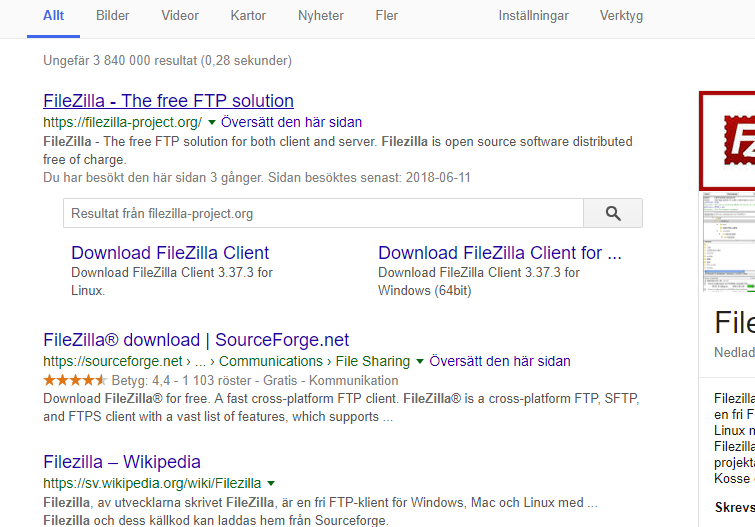
- Search on Google for "filezilla".

- Click the result called filezilla-project.org (you can click Download FileZilla Client directly).
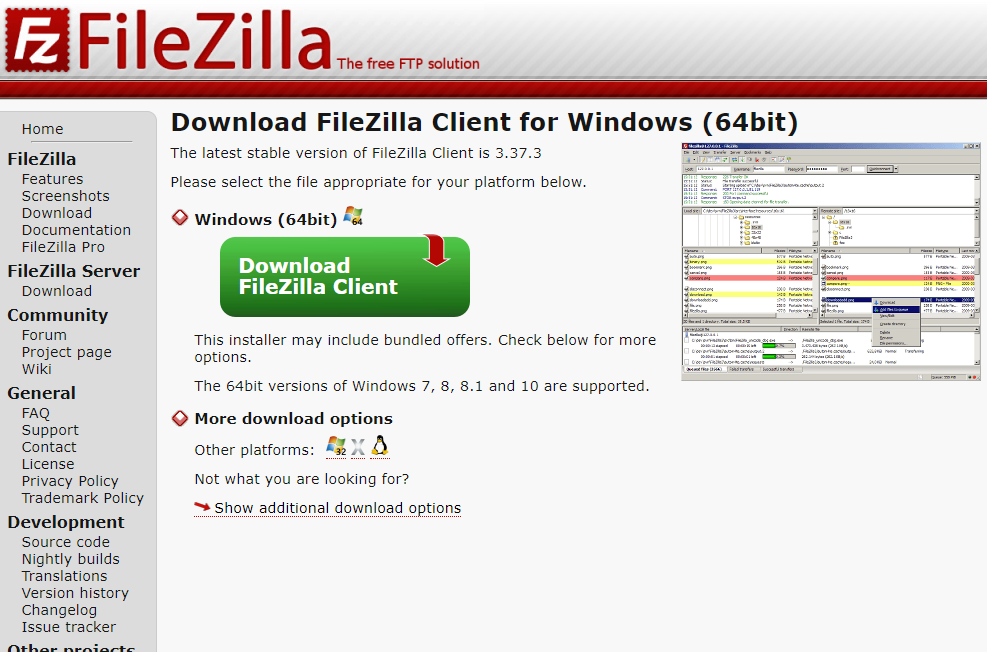
- Click "Download FileZilla Client" for your operating system. If you're on Windows, select the top option — FileZilla also works on Linux and Mac.
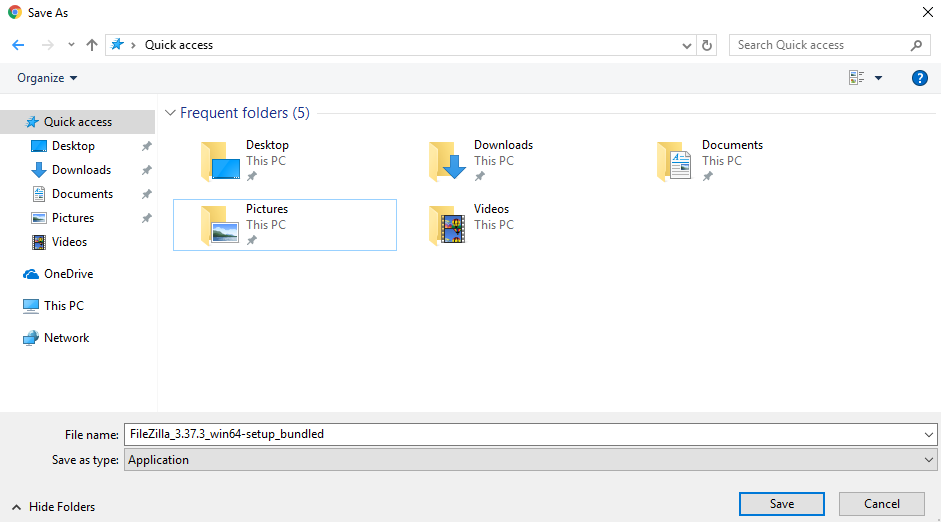
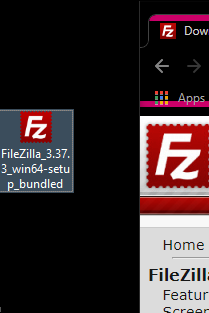
- Choose where to save the file (the desktop is a good option).
- Run the installer you just downloaded and follow the on-screen instructions.
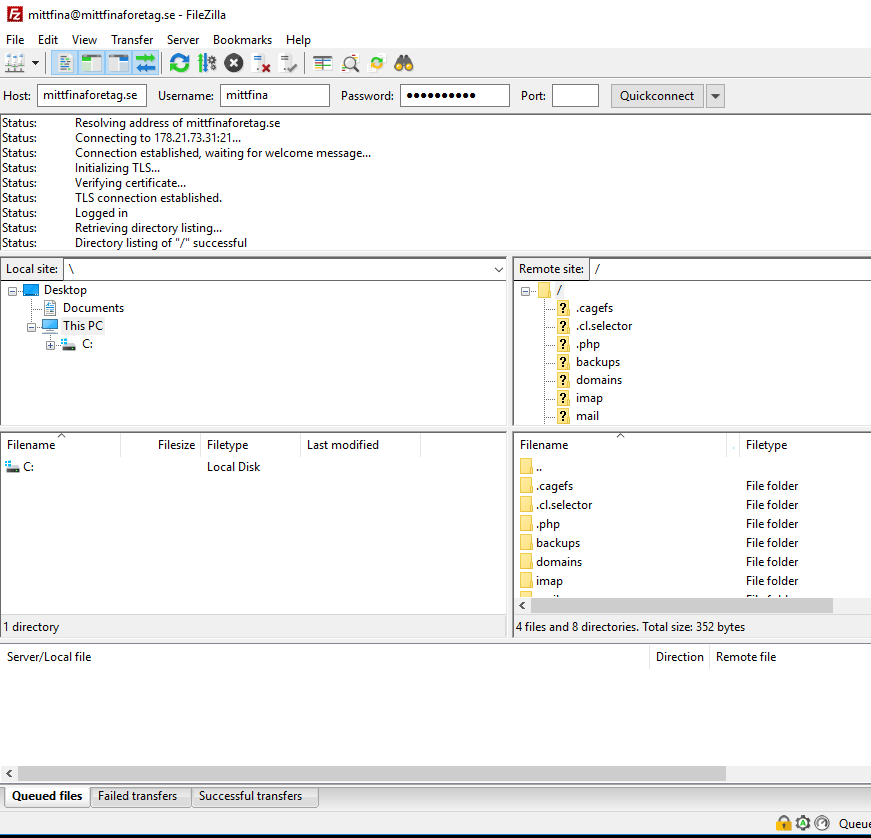
- Once installed, open the programme, enter your account details and click Quickconnect.
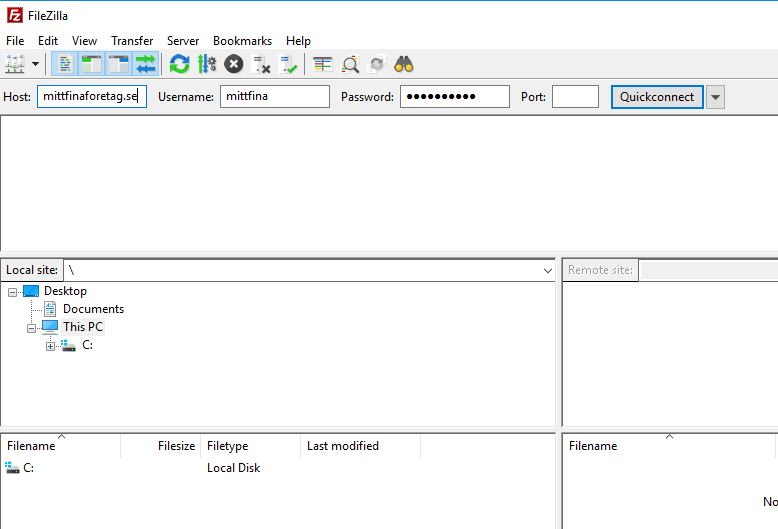
- If a certificate prompt appears, simply accept it and click OK. You'll then be connected to your FTP account and can browse your files. The server's files are shown on the right and your local computer on the left.