Sometimes certain code in WordPress, for example, can be incorrectly flagged as an injection by ModSecurity. To resolve this, we first need to check the logs to see if there are any hits.
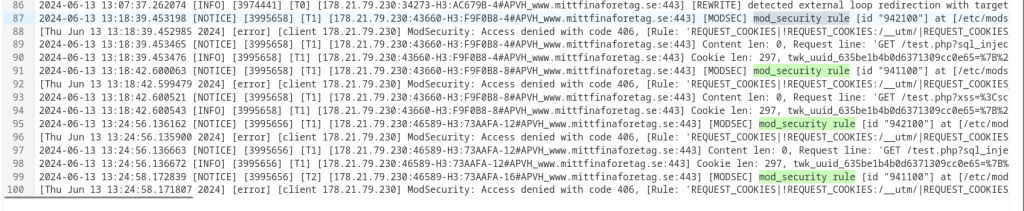
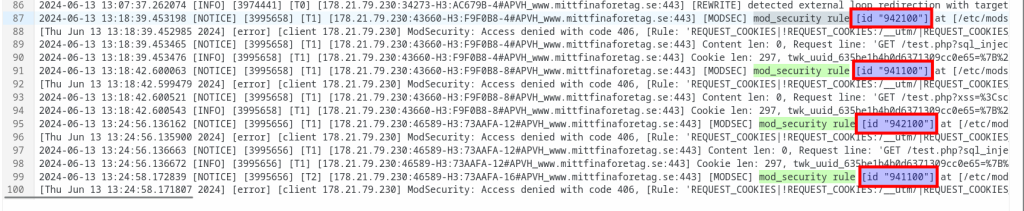
As you can see, we have a hit on ModSecurity. This is a test we carried out deliberately to trigger ModSecurity. As shown in the screenshot, there is also an 'id:'. You may sometimes need to add this ID manually. Further down in this guide we show you how to do that.
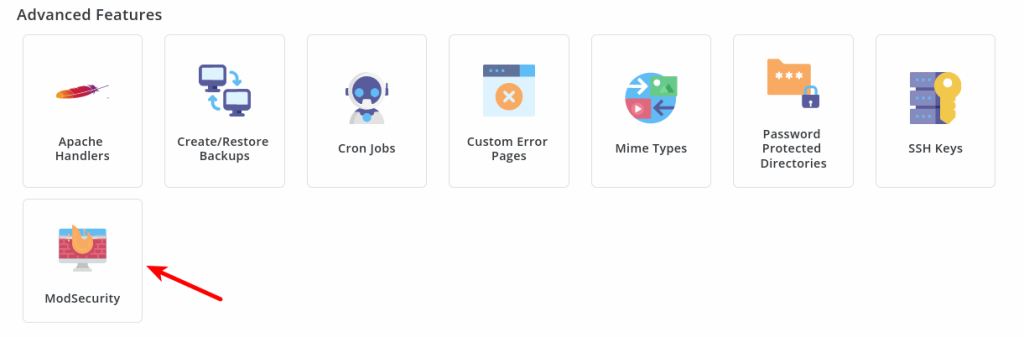
1. Start by logging in to the control panel and clicking "Modsecurity".
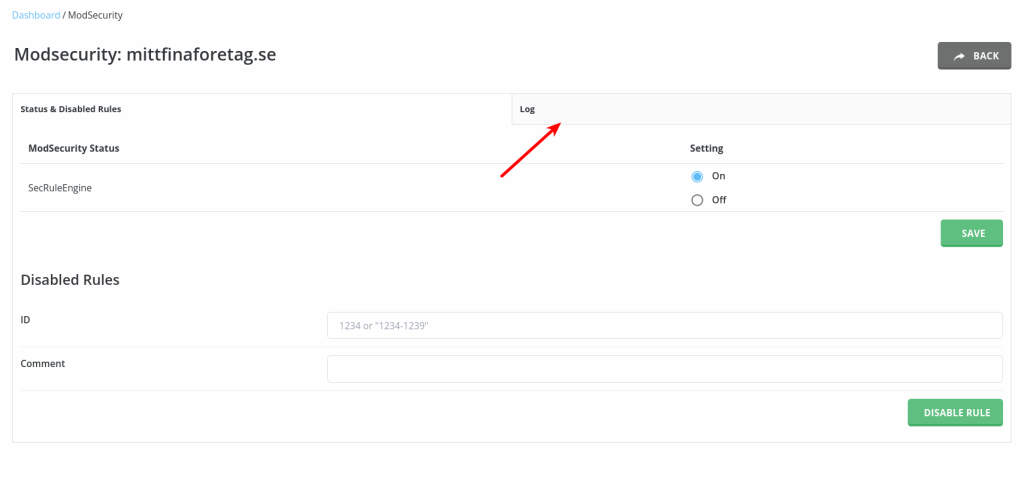
2. Click "Log".
3. Here we can disable a rule — for example the rule with ID: 941100. To do this, tick "Skip". This exempts the rule from being blocked. As you saw earlier, ID: 942100 is missing. We will need to add that manually in a later step.
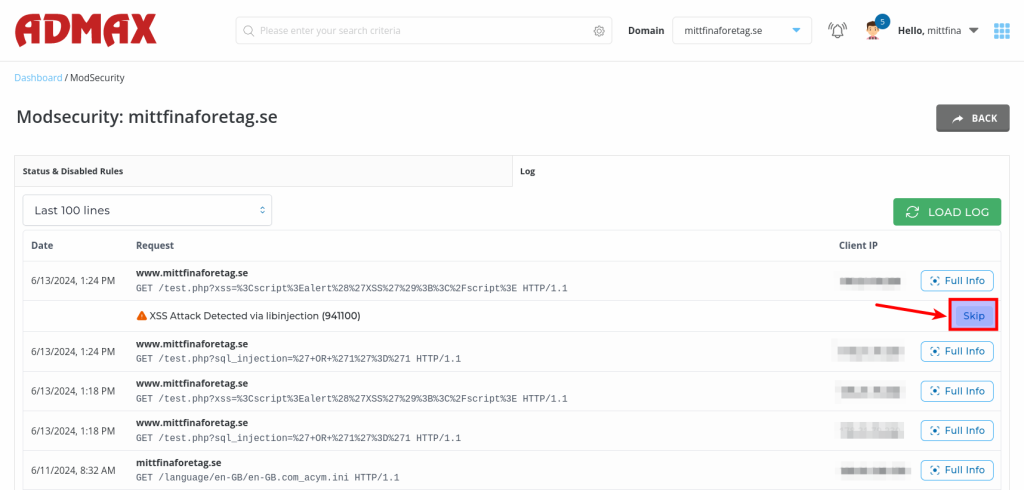
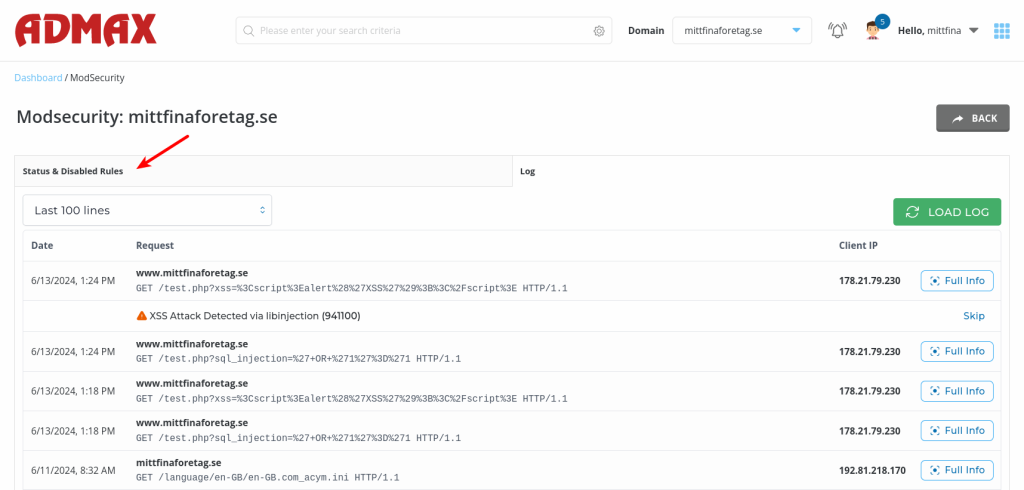
4. Once you have clicked "Skip", go back to see what happened to your rule by clicking "Status & Disabled Rules".
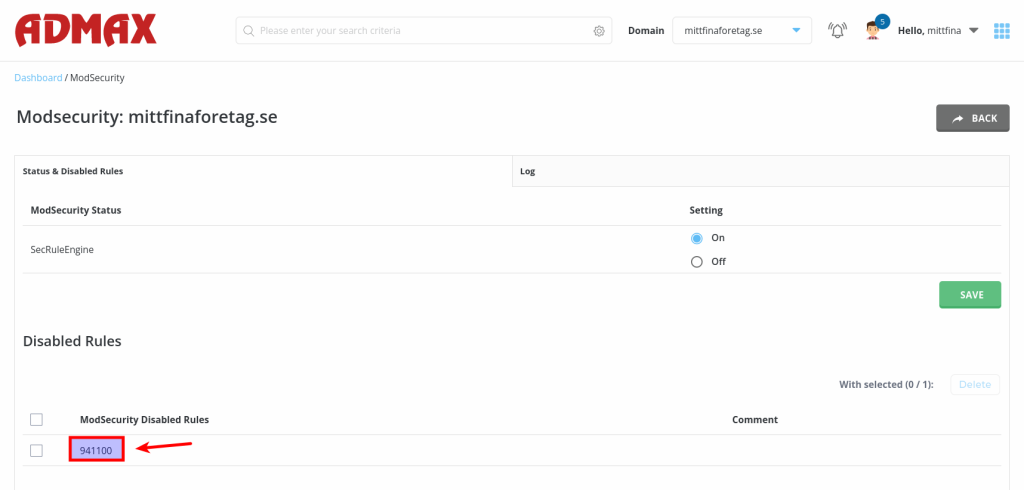
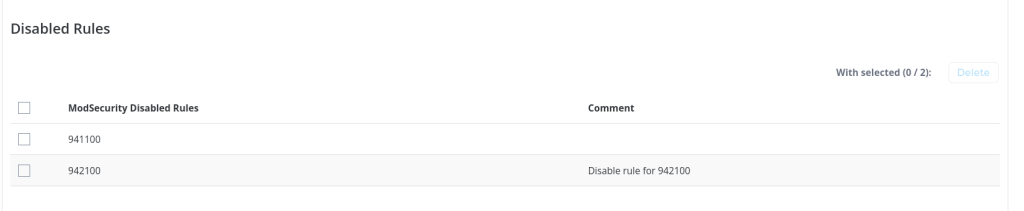
5. As you can see, the rule we exempted from ModSecurity now appears under "ModSecurity Disabled Rules". This means the rule is excluded from being blocked by the security system.
6. To add ID: 942100, which is currently missing, enter the rule ID and then click "DISABLE RULE".
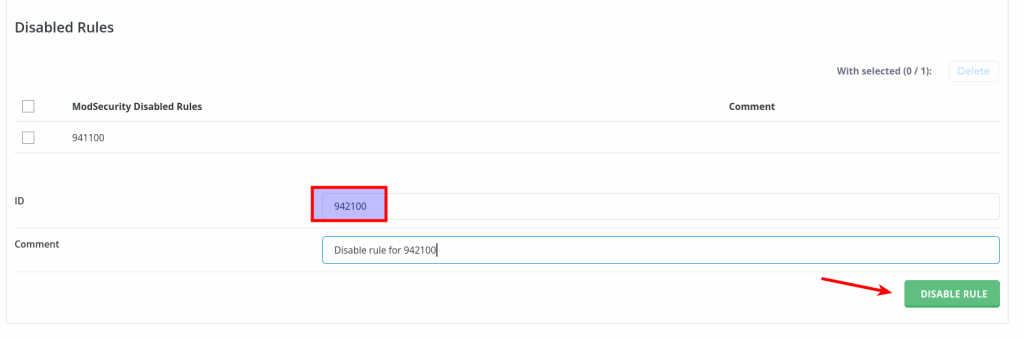
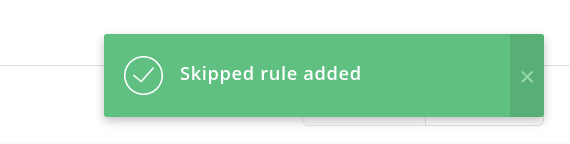
Once you have done this, you will see a confirmation message like the following:
7. Everything is now set up and you can see that we have two rules that have been exempted from being blocked by ModSecurity.
If you still have issues or need help, please contact our support team and we will be happy to assist.