Back to the knowledge base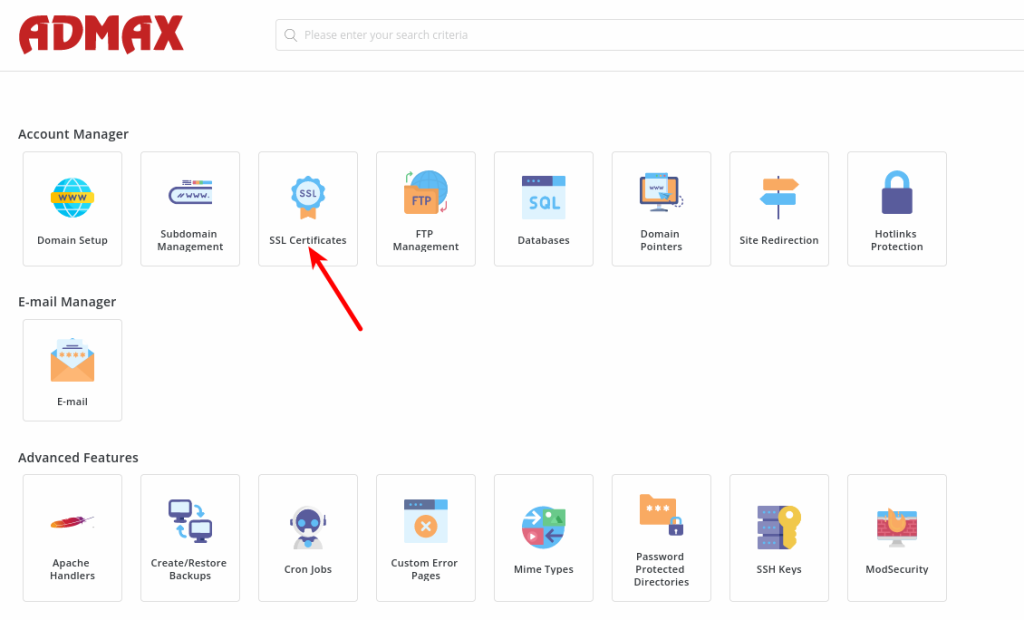
Admax Hosting AB · web hosting in Sweden since 1996Published 31 March 2026
Add SSL to your web hosting
To add an SSL certificate to your web hosting with us, you first need to be logged in to the Admax control panel for your web hosting.
1. Start by clicking "SSL Certificates" as shown in the image
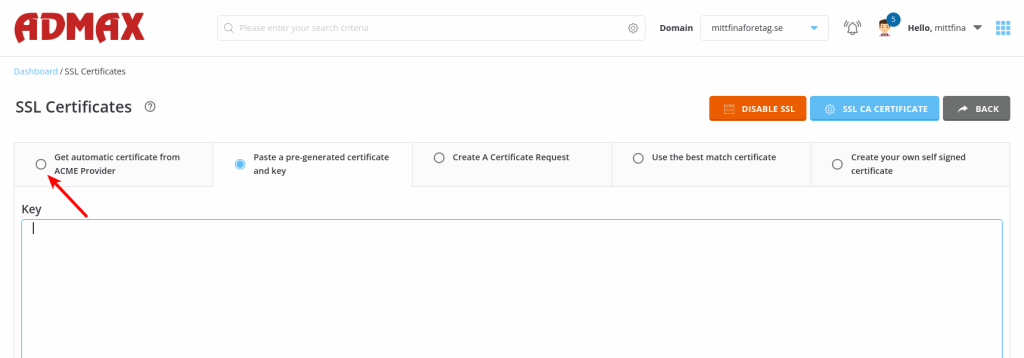
2. Click "Get automatic certificate from ACME Provider"
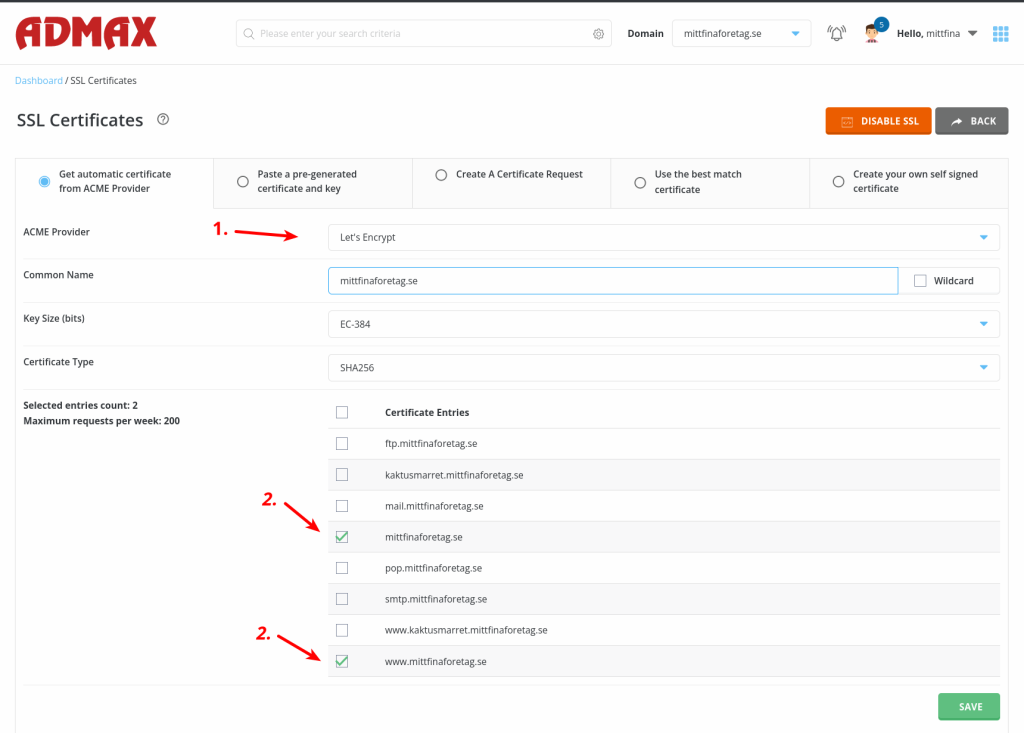
3. There are a few things to consider here:
- 1. Choose which ACME provider you want to use. You can either select the default provider Let's Encrypt or ZeroSSL, which is also a free SSL provider.
- 2. Tick the domains you want to include in the SSL certificate. Typically you tick both with and without www, but you can also select only without www if www is not used on the domain.
- 3. Finally, click "SAVE".
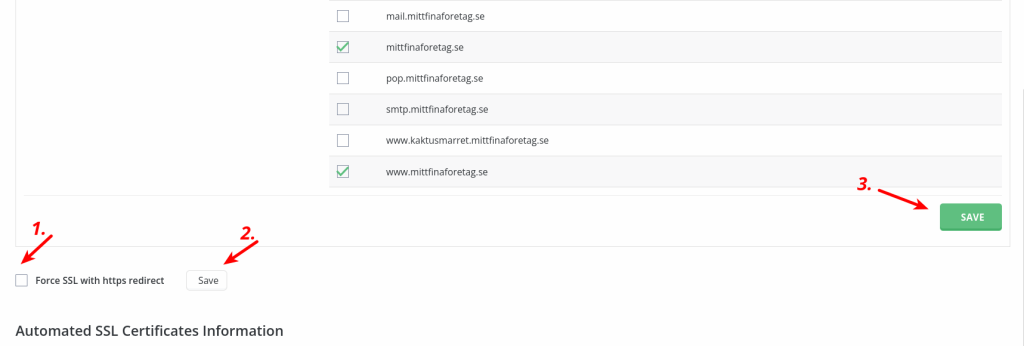
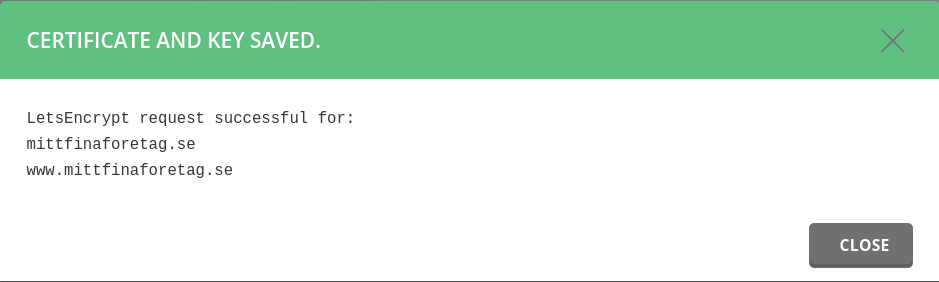
4. Once you have ticked the domains you want the SSL certificate for, click the "SAVE" button.
If you want our server to handle the redirect from http to https, follow these steps:
- 1. Tick the redirect box as shown in step 1.
- 2. Click the "SAVE" button (the white button) as shown in step 2.
- 3. Save the changes and generate the certificate as shown in step 3.
Please note that this is usually not necessary, as most WordPress sites today handle the redirect from http to https automatically.