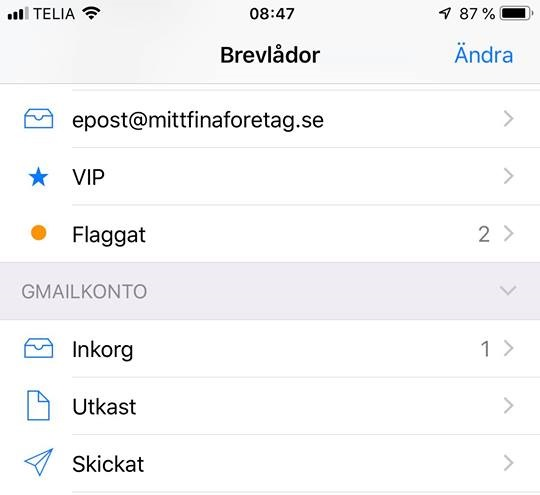
Email account on iPhone/iPad
To add your email account to your iPhone, follow the steps below. In our example we are using an iPhone 7.
Step 1
Open "Settings" and go to "Accounts & Passwords". Select "Add Account". Here we will choose the type "Other".

Step 2
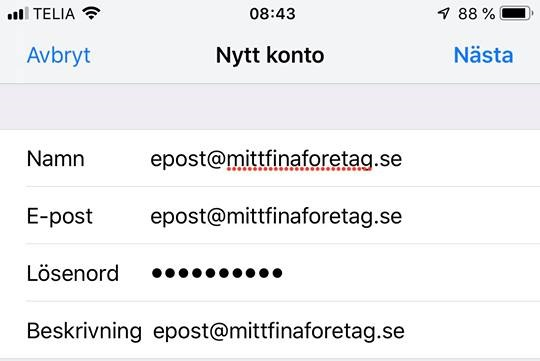
On the next page, enter your email address and password. For Name and Description we have used the email address, but you can write whatever you like — something descriptive works well. Tap "Next".
Step 3
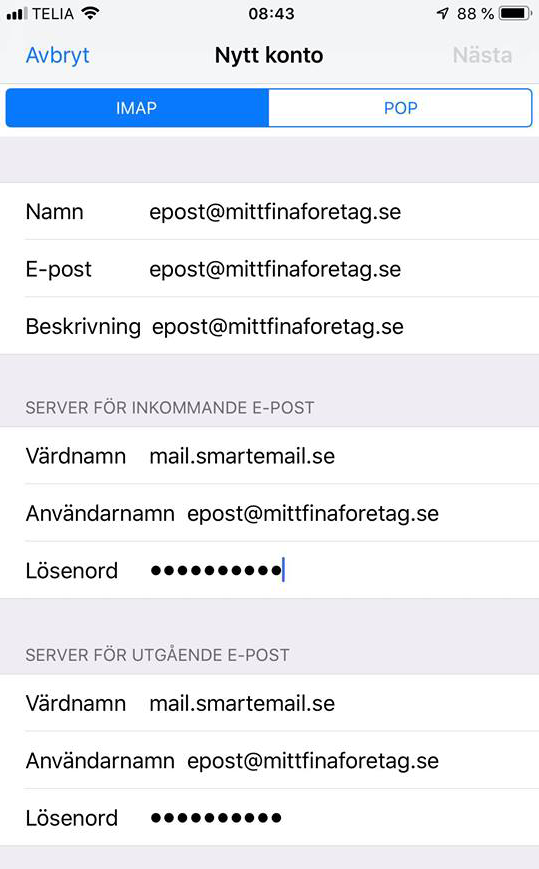
Now select IMAP and fill in your details. Note that you must complete all fields, including those marked as optional.
Step 4
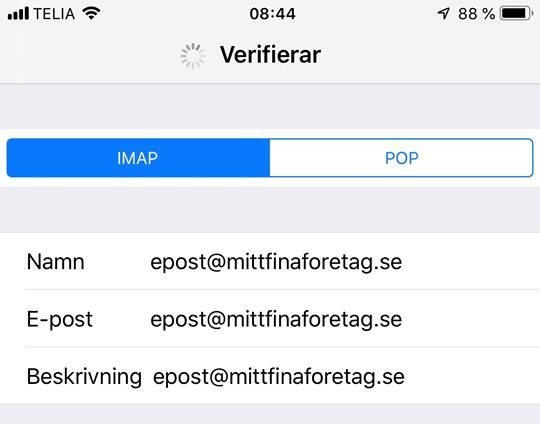
Once everything is filled in, tap "Next" and your details will be verified. This may take a few minutes.
Step 5
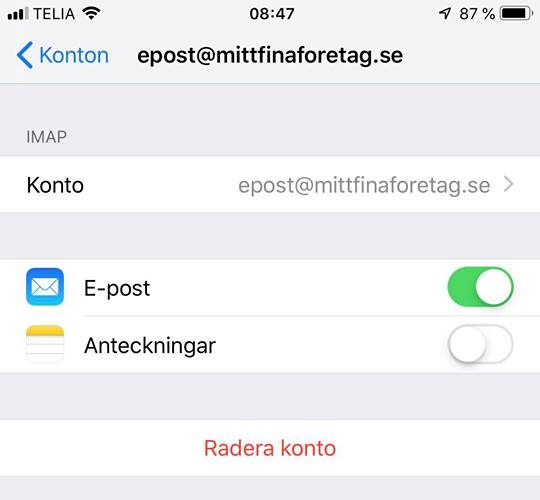
When verification is complete, you can choose what to sync. You can select email and/or notes.
Step 6
You're all set — open the Mail app and start using it.