Back to the knowledge base
Admax Hosting AB · web hosting in Sweden since 1996Published 31 March 2026
Setting up an email account in Mac Mail
Follow this guide to set up your email account in Mac Mail.
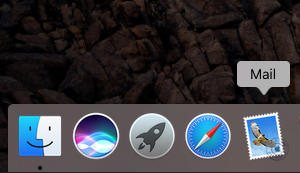
- Open the Mail app on your Mac.
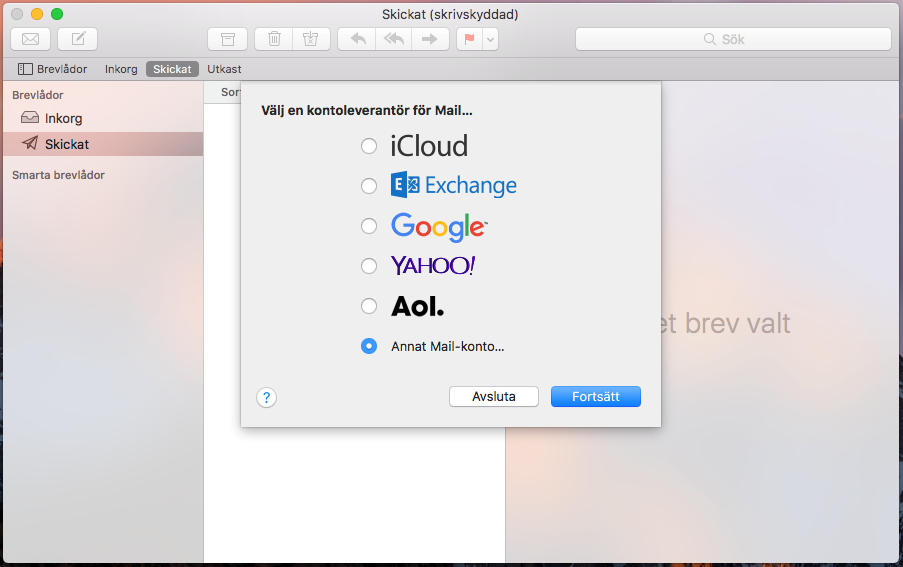
- If this is the first time you open Mail, you will be prompted straight away to add a new email account. Otherwise, go to the Mail menu, then Preferences, and click on "Accounts". The plus button at the bottom takes you to the same window shown below. Select "Other Mail Account..." and click "Continue".
- Enter your name (we suggest using your email address to keep things simple), your email address, and your password.
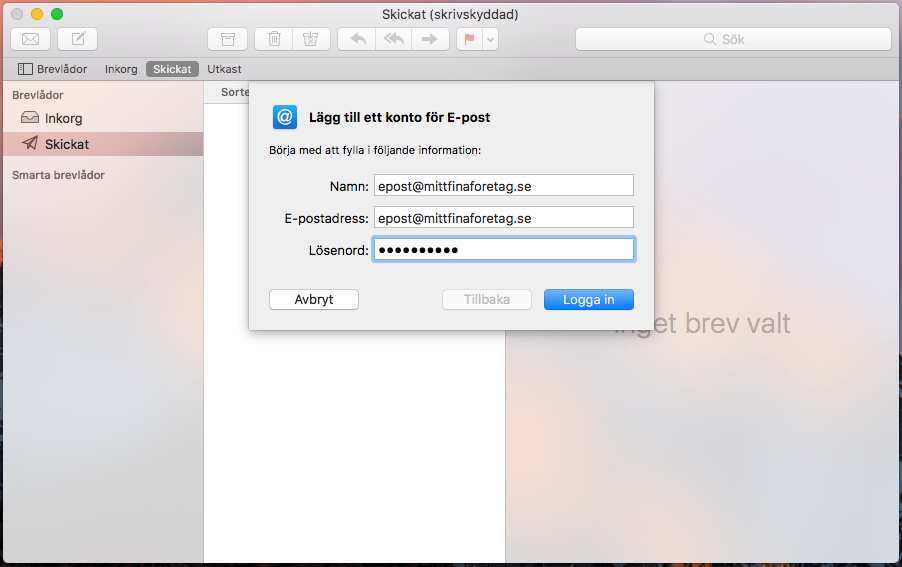
- If Mail cannot find the mail server automatically, you will need to enter the incoming and outgoing server details manually. Both use the same address: "mail.smartemail.se".
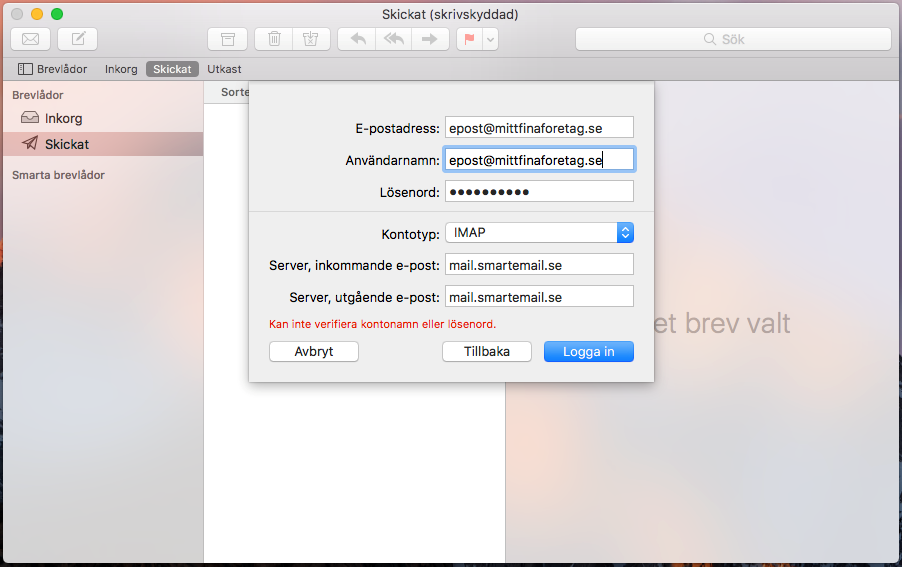
- That worked. Click "Done" on the next screen.
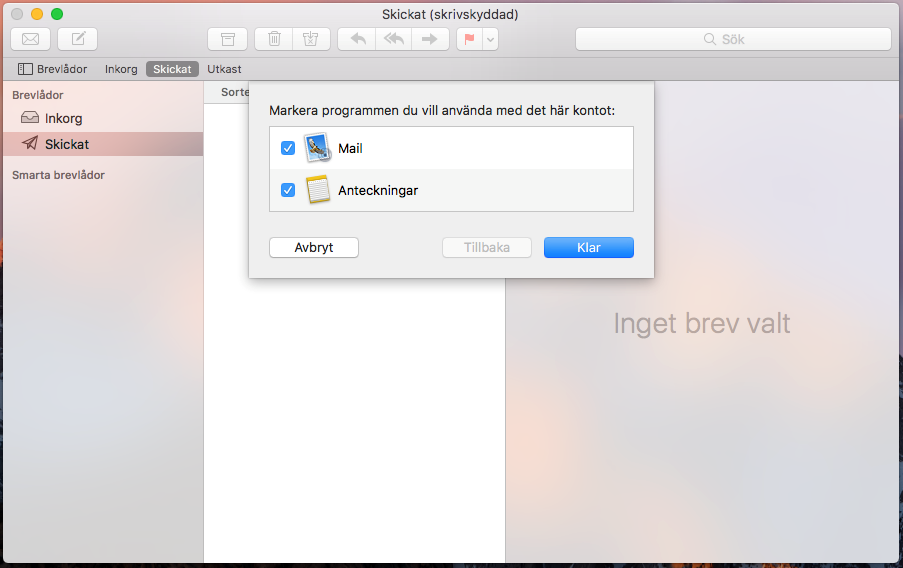
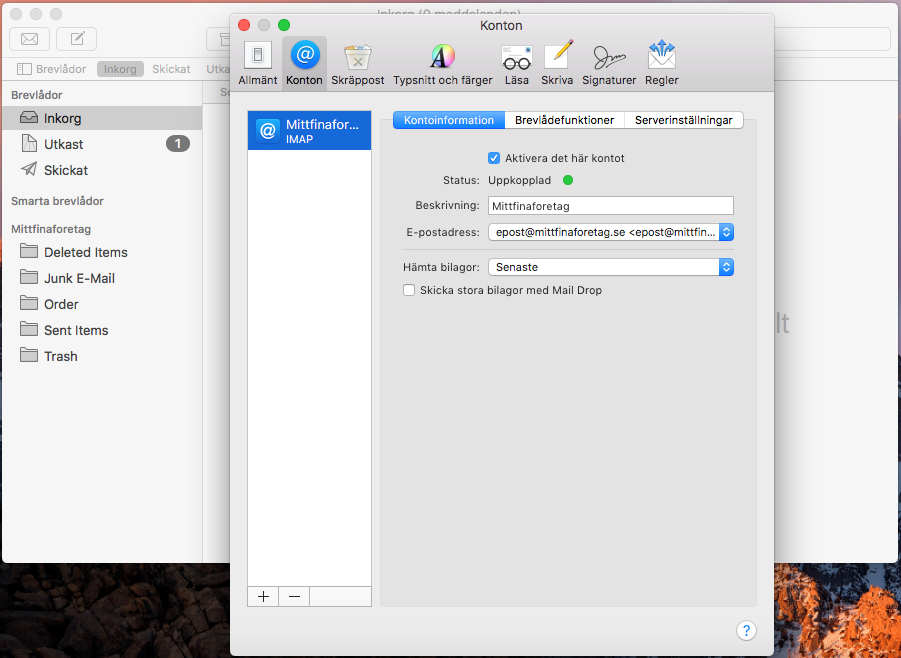
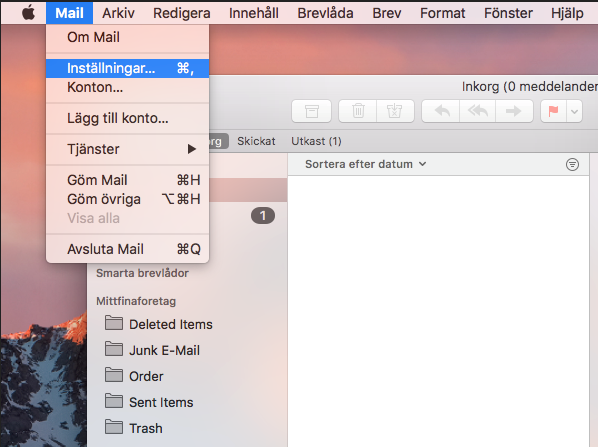
- Your account is now added and you can start using your email. It is worth checking that the settings are correct, though. In the Mail menu, click "Preferences".
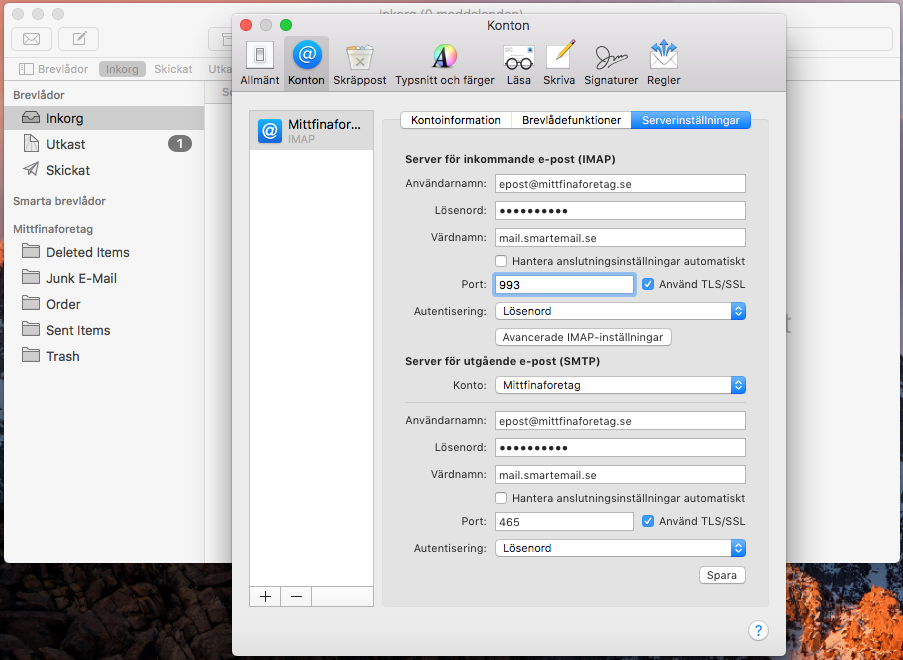
- Under "Accounts", on the "Server Settings" tab, update the settings as shown below. Note the server port if you are using POP, as it differs from IMAP.
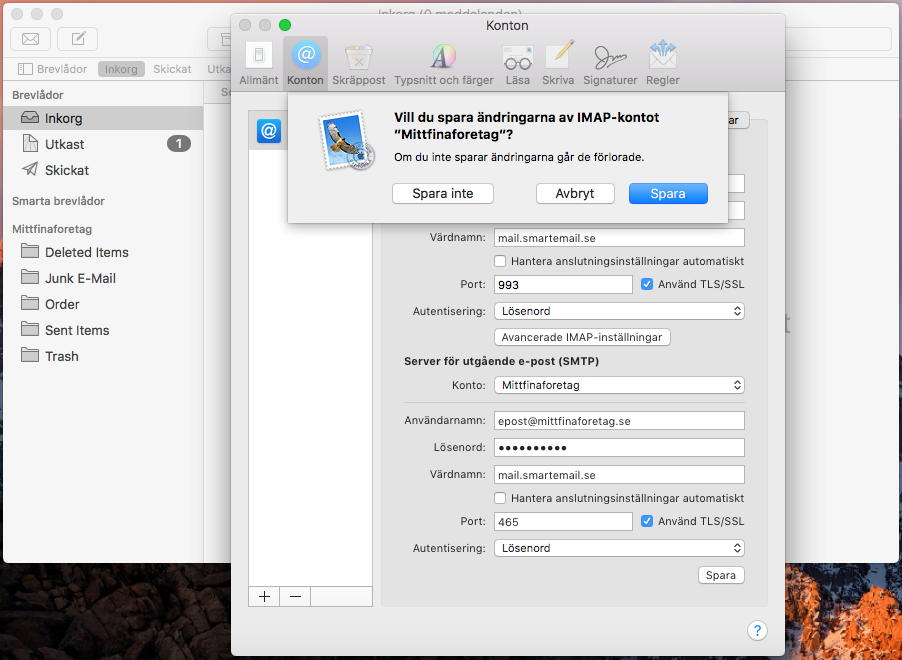
- To save, click on for example "General" and you will be prompted to save. Click "Save".
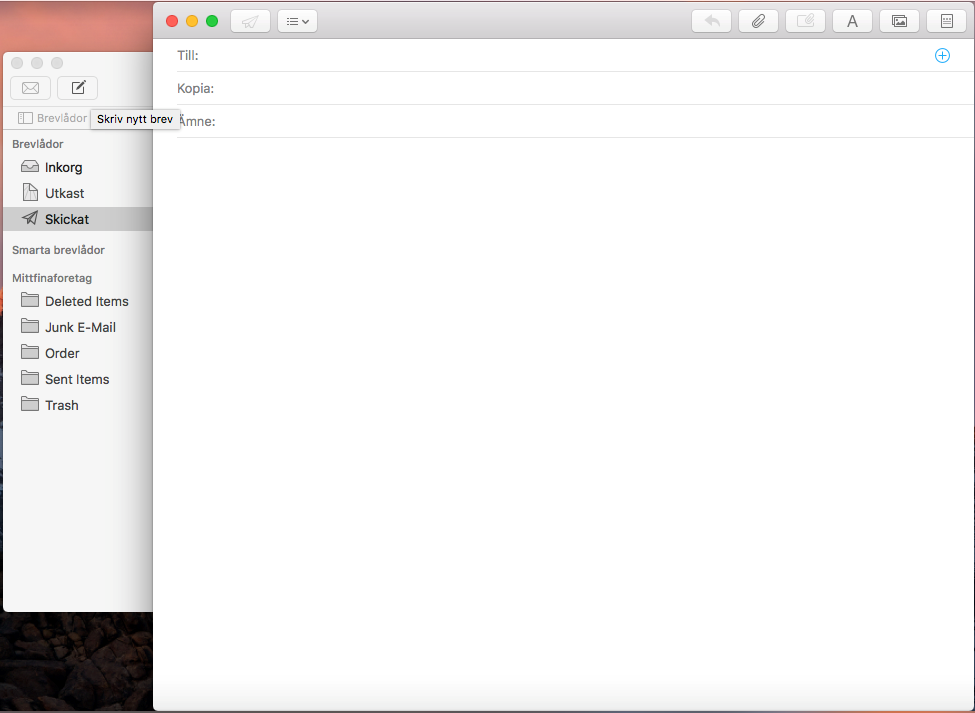
- All done — your settings are now correct. Close the window and you are ready to send your first message.