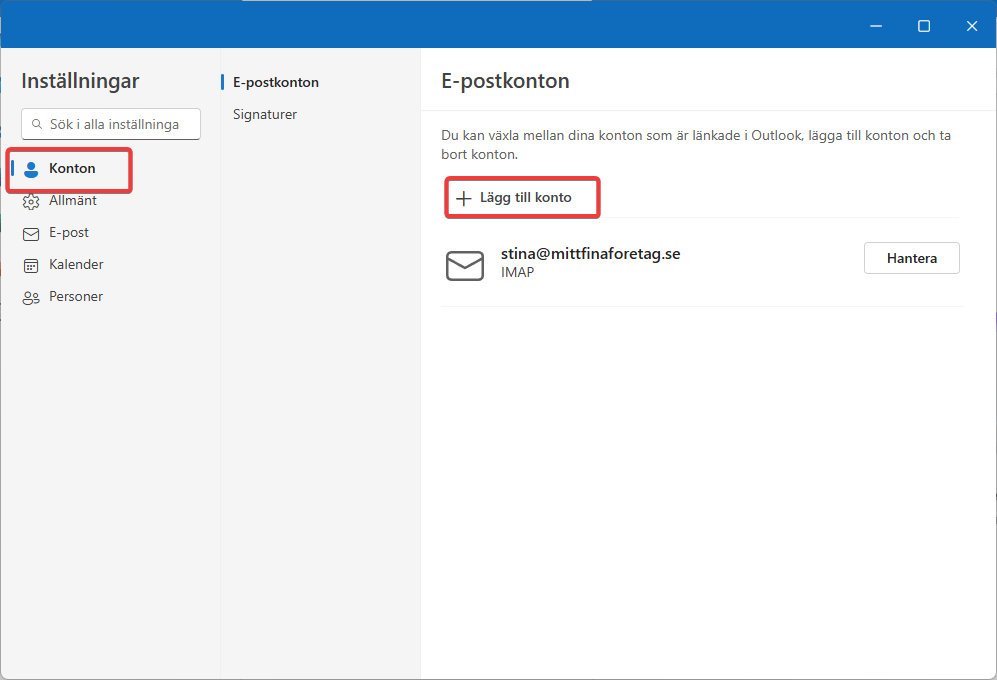
To add your email address in the new version of Outlook for Windows (from client version 20240704010.19.), follow the steps below.
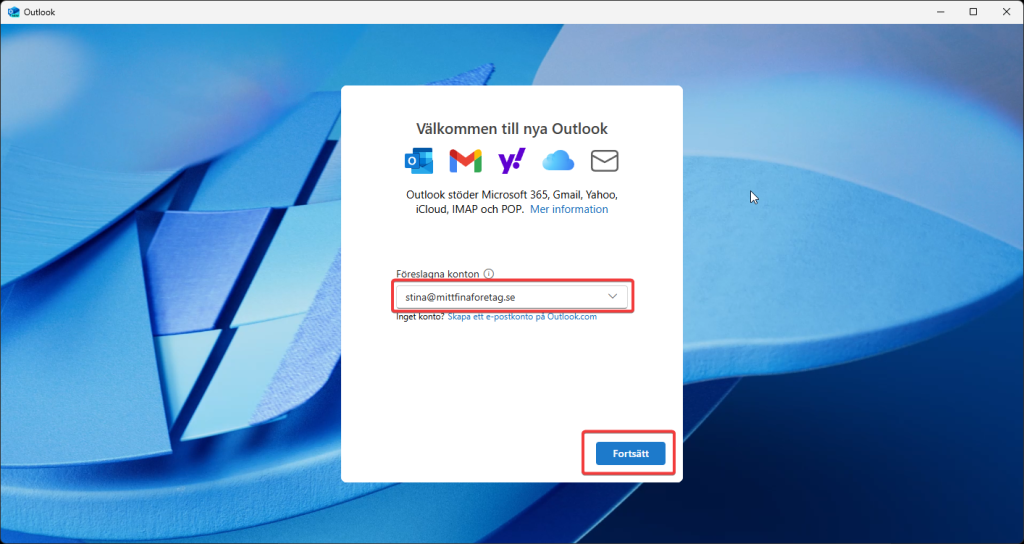
Open Outlook and enter the email address you want to add, then click "Continue".
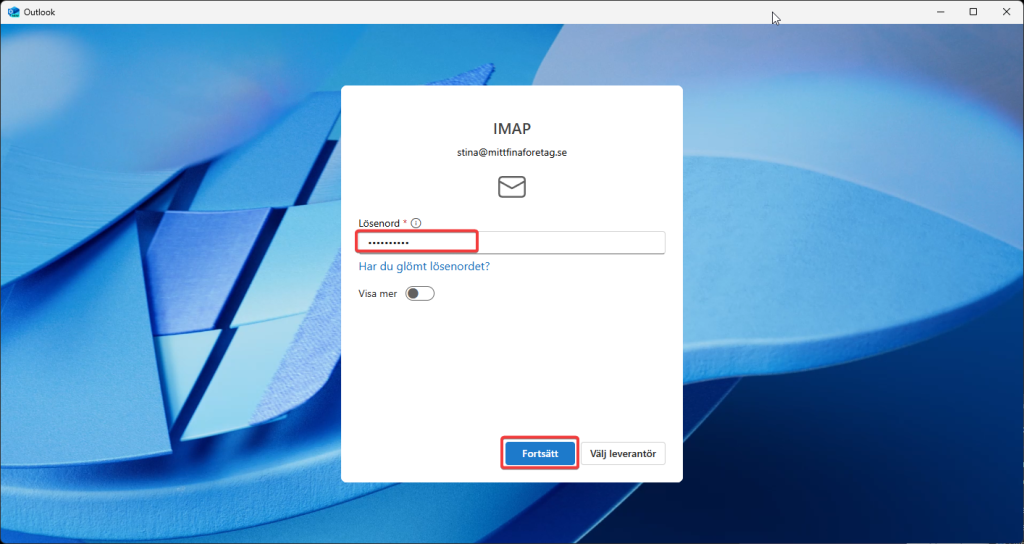
Enter your email password and click "Continue".
Click "Continue" on the next screen as well.
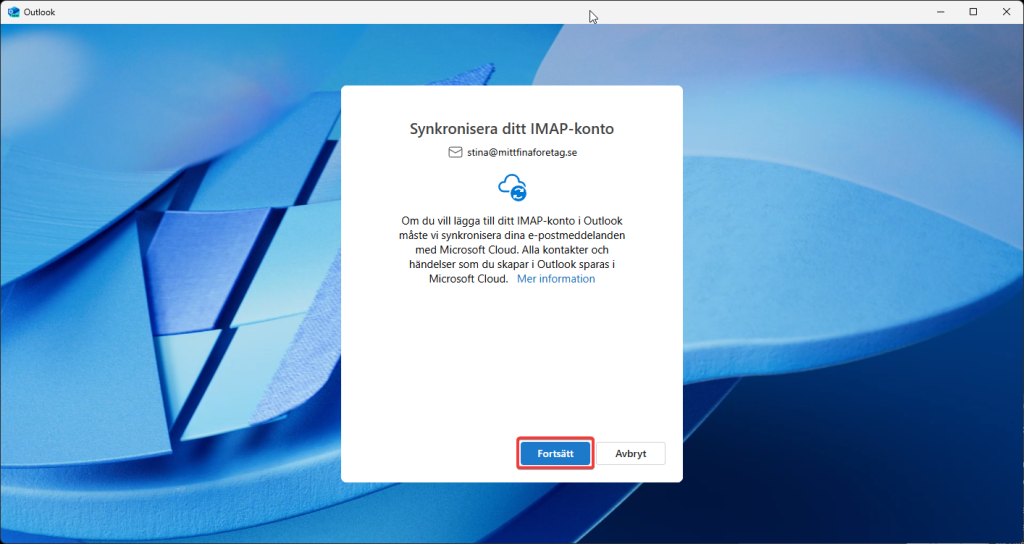
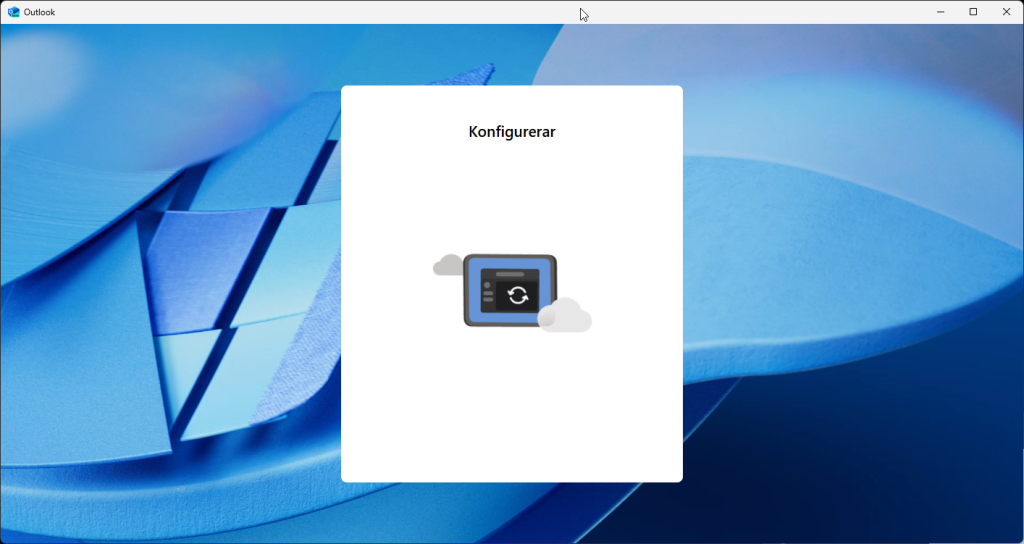
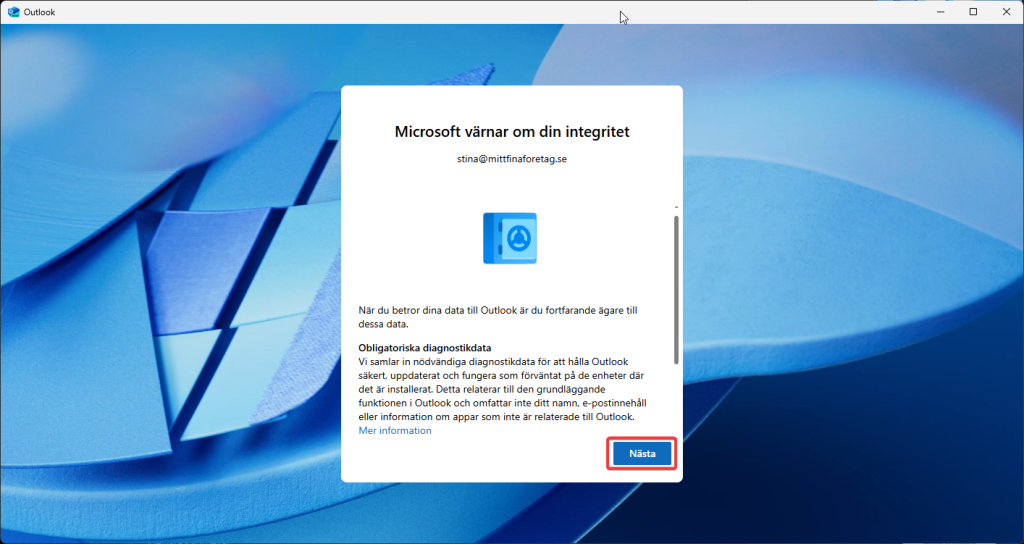
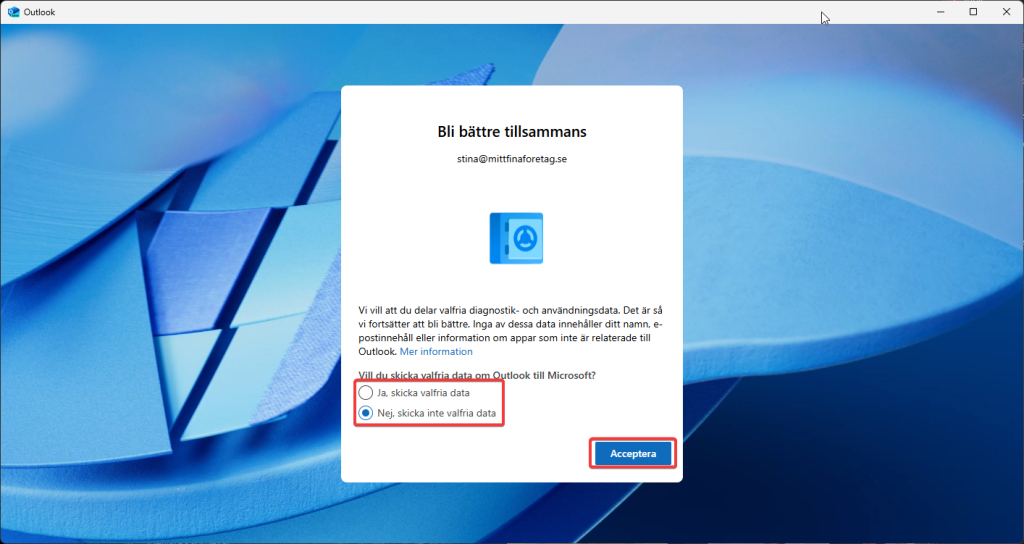
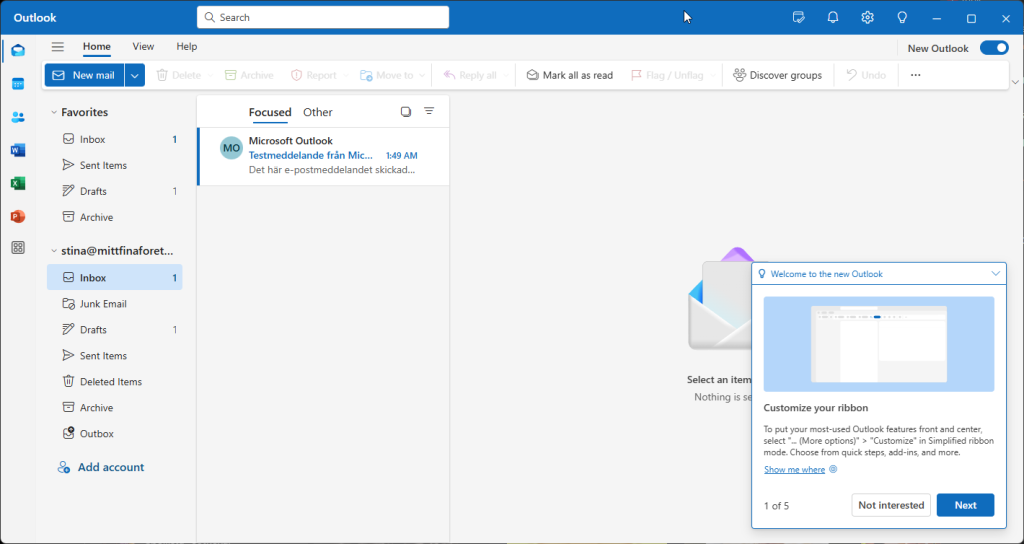
This may take a moment, especially if this is the first time you're adding an email account to the application. A few things need to be configured — just work through the prompts and make your choices, and the account will be added so you can start using your email.
If Outlook cannot find your settings automatically, you will need to enter them manually. Click the "Show more" toggle and fill in the details below (make sure to untick "Use recommended settings" and scroll down to complete all fields). Once you've entered everything, click "Continue" and Outlook should find and add your account.
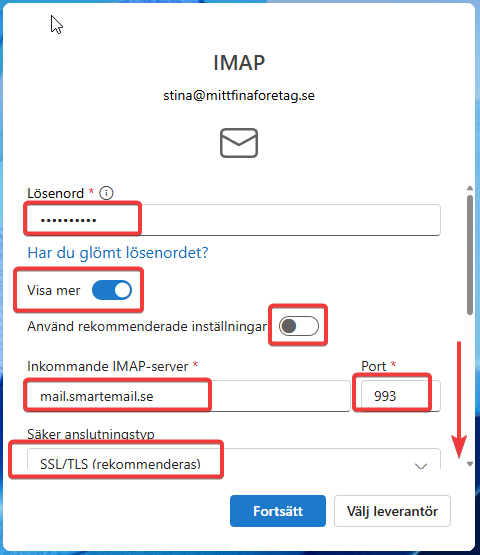
Password: Your email password
Incoming IMAP server: mail.smartemail.se
Server port: 993 (with SSL) or 143 (without SSL)
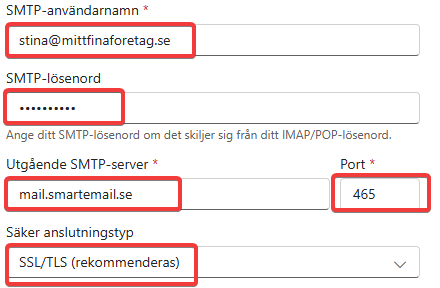
SMTP username: Your email address
Password: Your email password
Outgoing SMTP server: mail.smartemail.se
Port: 465 (with SSL/TLS) or 587 (with TLS)
More information about the new version of Outlook
To add another email account, click the gear icon in the top right of the application, then select "Accounts" from the left-hand menu and "Add account" to repeat the process for the additional account.