Admax Hosting AB · web hosting in Sweden since 1996Updated 6 October 2026
With two-factor authentication (2FA), you need both your password and a code from your phone to log in. Even if someone gets hold of your password, they won't be able to access your account. You'll need an authenticator app, such as Google Authenticator, Microsoft Authenticator or Authy.
Click My profile in the menu and select the Security tab.
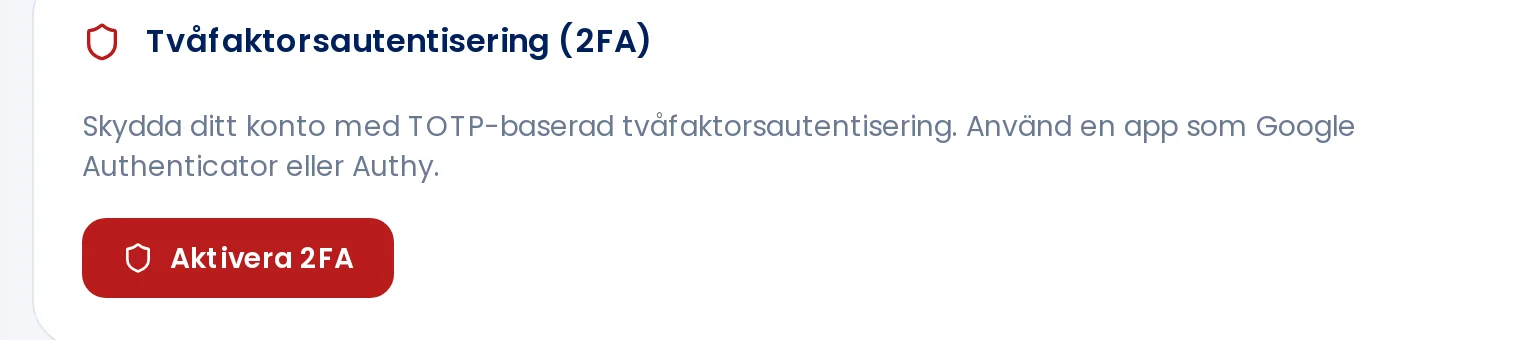
Click Enable 2FA under Two-factor authentication.
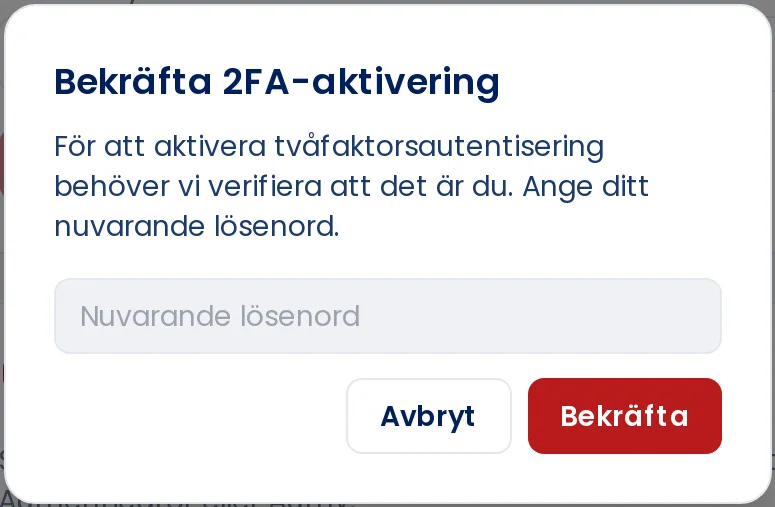
Enter your password and click Confirm.
Open your authenticator app and scan the QR code shown. If you can't scan it, you can enter the key below the code manually.
Enter the six-digit code from the app and click Verify and enable.
You confirm with your password before the QR code is shown.
When two-factor authentication is enabled, Active is shown under Security. The next time you log in, you'll be prompted for the code from your app after entering your password.
Turning off two-factor authentication
Go to the Security tab and click Disable 2FA. You can turn it on again at any time.
If you're changing phones, transfer your codes in the app before getting rid of the old one. If you've lost access to your codes, contact our support team and we'll help you out.