Admax Hosting AB · web hosting in Sweden since 1996Updated 6 October 2026
Would you like a colleague, an accountant, or a web agency to be able to log in and help out? Invite them as a user. They get their own login and can only see what you grant them access to. If they already have an account with us, they can switch between their own account and yours.
Inviting a user
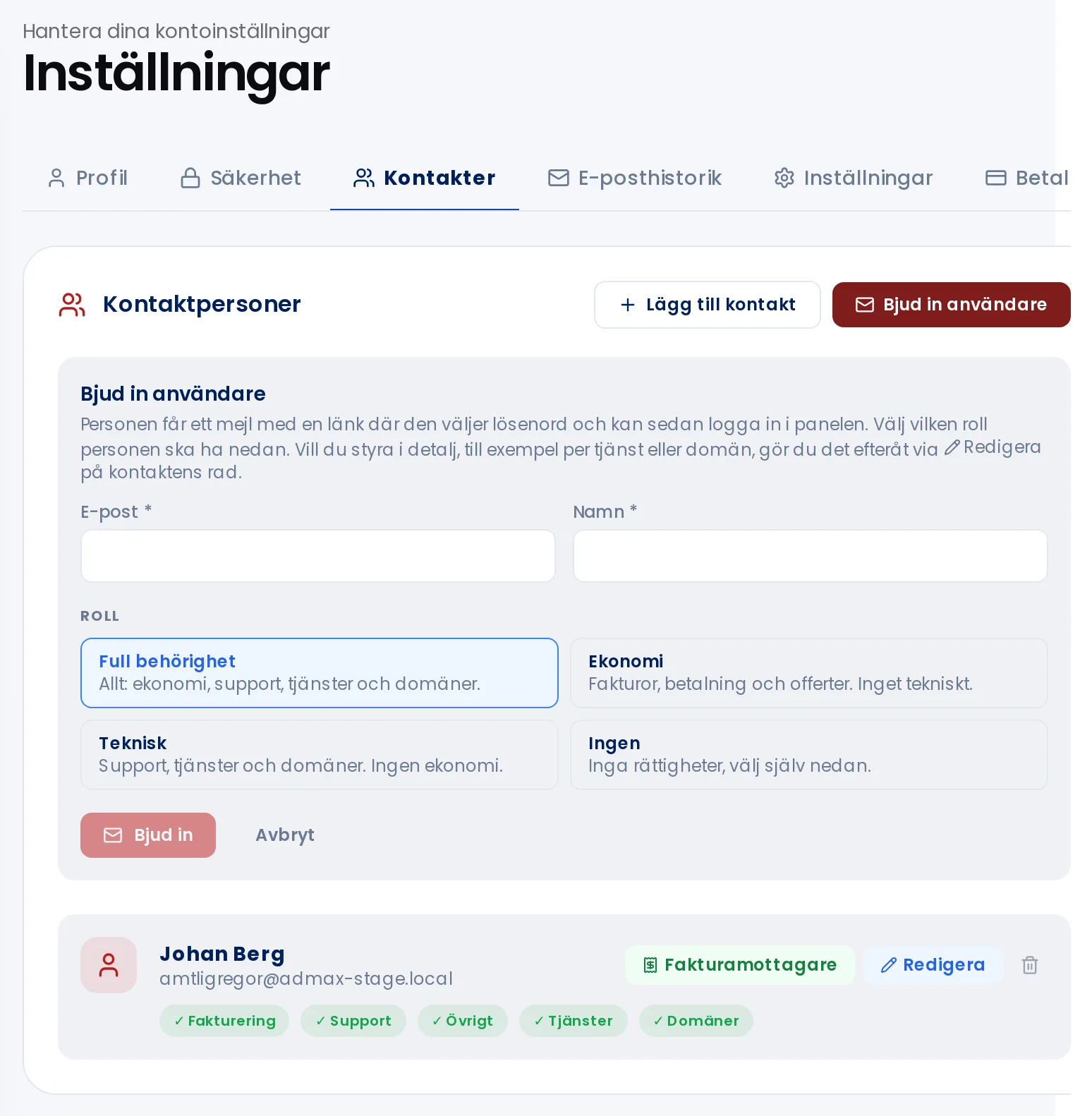
Click Manage contacts in the menu.
Click Invite user.
Enter the person's email address and name.
Choose a role: Full access, Finance (invoices and payments), Technical (support tickets, services, and domains), or None.
Click Invite. They will receive an email with a link to set their password and activate their account.
Choose a role when sending the invitation. You can fine-tune the permissions afterwards.
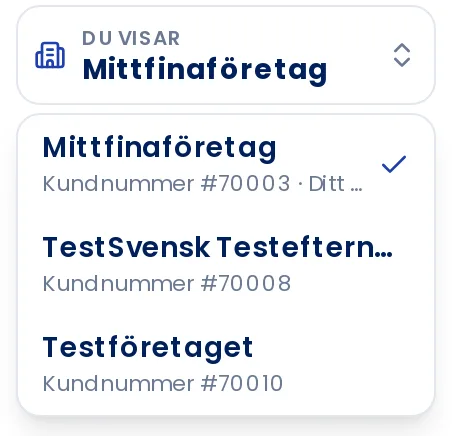
If your login has access to more than one account — for example if you are a reseller or manage several companies — a You are viewing box will appear in the menu.
Click the You are viewing box below your name.
Select the account you want to work in. The customer portal will reload and display that account.
When you are in someone else's account, a red bar is shown at the top. Click Switch back to your account to return.
Your own account is marked with Your account.
It is the account owner who sends invitations. You cannot add another account to the list yourself — you need to be invited from that account.