Domain Assistant is an AI tool in the customer portal that makes DNS record changes for you. Describe what you want in plain language, or paste the list you've received from your provider, and you'll get a ready-made proposal. Nothing changes until you've approved it, and everything can be undone within 24 hours.
Open Domain Assistant
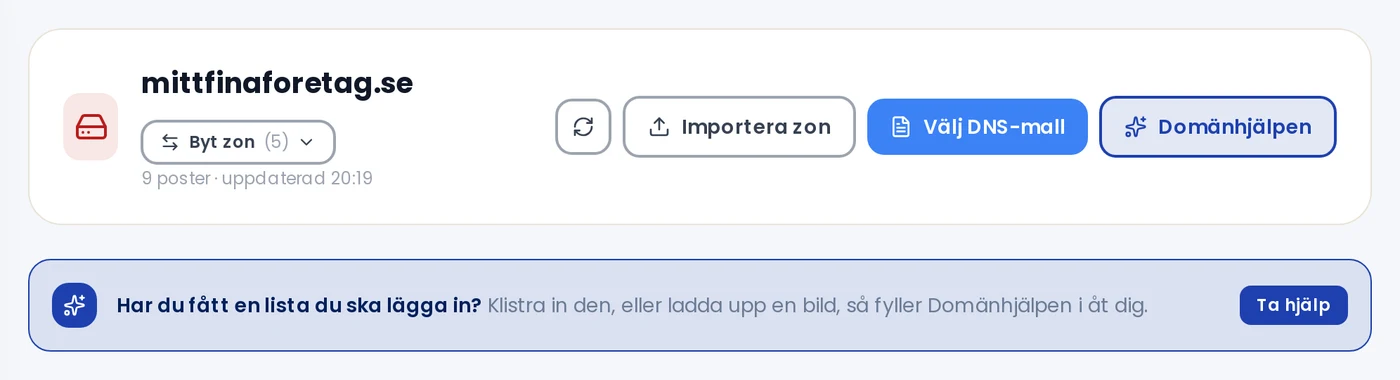
- Click DNS in the menu, then click Manage next to the domain.
- Click Domain Assistant in the toolbar, or click Get help in the box labelled Have you received a list to add?
Describe what you want to do
Write as you would explain it to a colleague. Some examples:
- I'm switching to Microsoft 365
- Connect the domain to my Shopify store
- Add a TXT record google-site-verification=abc123
- Point www to 203.0.113.10
If you've received a list of records, you can paste it in as-is. If you have it as a screenshot, click the paperclip icon and upload the image. PNG, JPG and WEBP files up to 6 MB are supported. The image is read on our own server and deleted immediately afterwards.
If anything is missing, Domain Assistant will ask a follow-up question. For common services such as Microsoft 365, Google Workspace, Shopify and Squarespace, it already knows the standard records and will only ask for what's unique to your account.
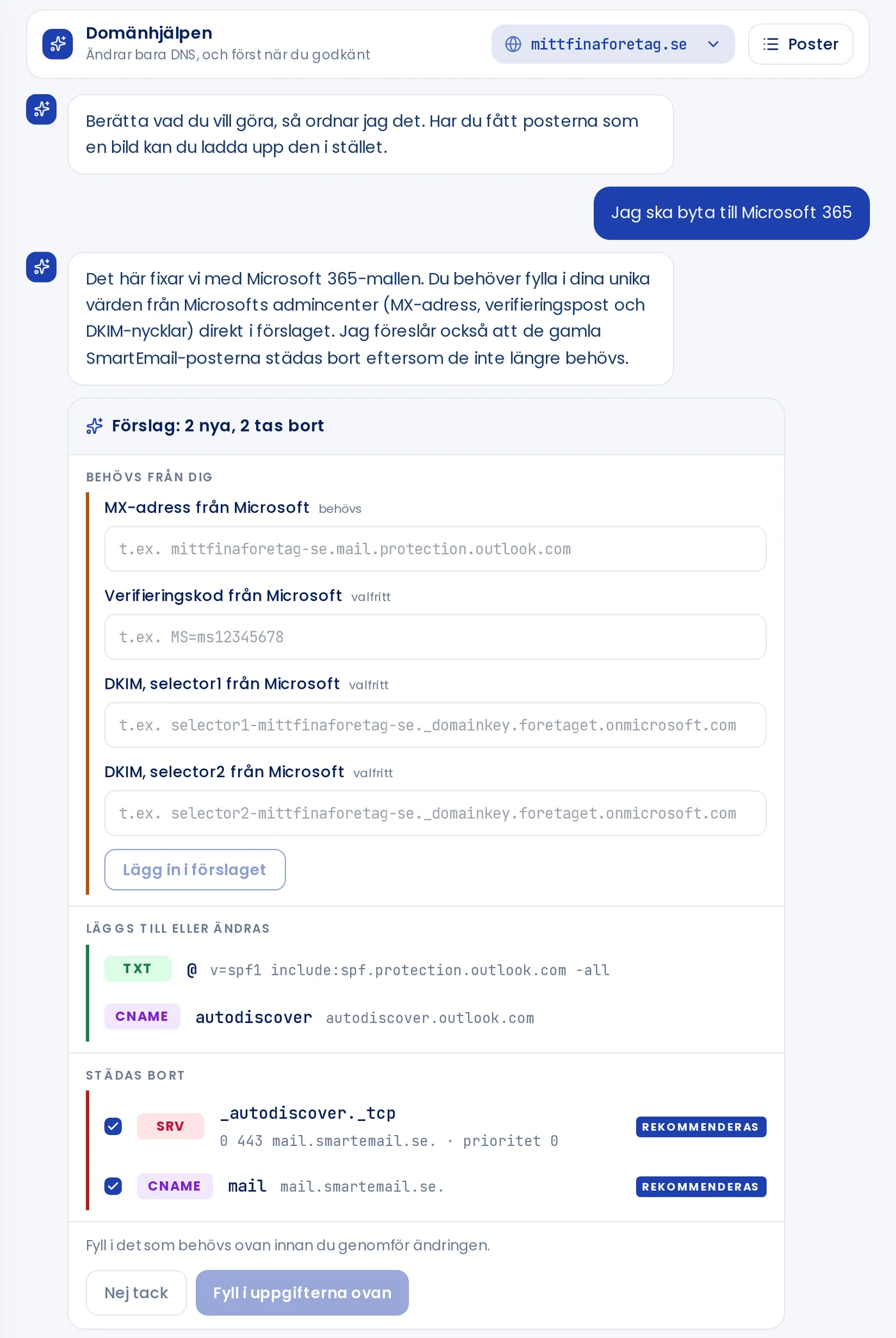
Review the proposal
The proposal shows the full change before anything happens:
- Needed from you: details only you have, such as your MX address from Microsoft. Fill in the fields and click Add to proposal. Fields marked optional can be skipped.
- To be added or changed: new records, and updates where the old and new record are shown one above the other with an arrow between them. For each update, you choose Replace the old one with the new one or Keep the old one and add the new one alongside it.
- To be removed: old records that are no longer needed, for example from a previous email provider. These are ticked by default. Untick any you want to keep.
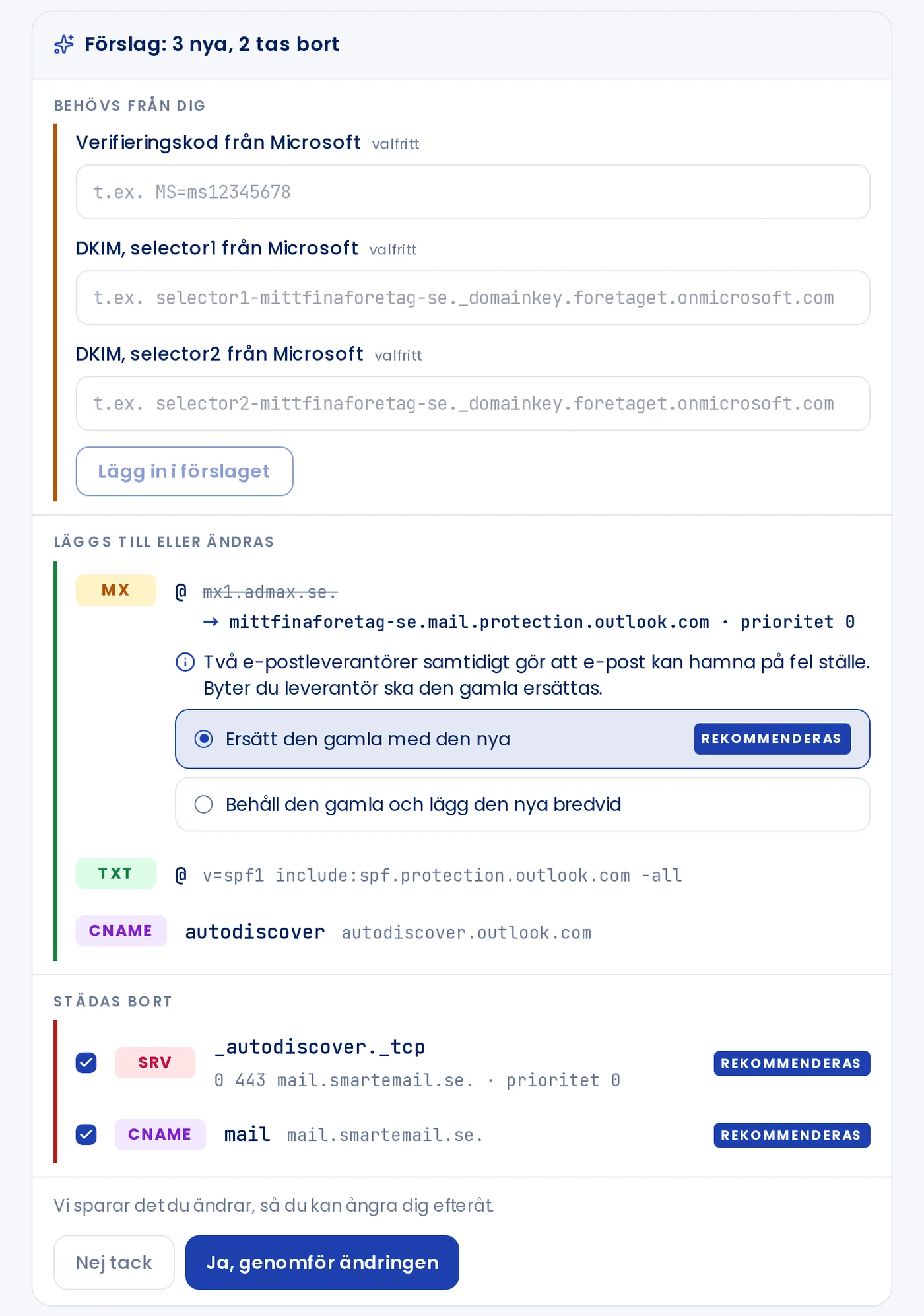
Click Yes, apply the changes when everything looks right. The button is disabled until all required fields have been filled in. If you don't want to proceed, click No thanks, or type that you'd like to cancel. The proposal will close without making any changes.
Built-in safeguards
- Every record is validated by our own system before you see the proposal. What the AI suggests is only a proposal.
- If the domain already has an SPF record, it is merged with the new one, since a domain may only have one.
- The last MX record will not be removed unless a new one is being added, or you explicitly ask for it to be removed, so that email delivery isn't accidentally interrupted.
- Domain Assistant only handles DNS. For anything else, create a support ticket or chat with us.
View your records and switch domain
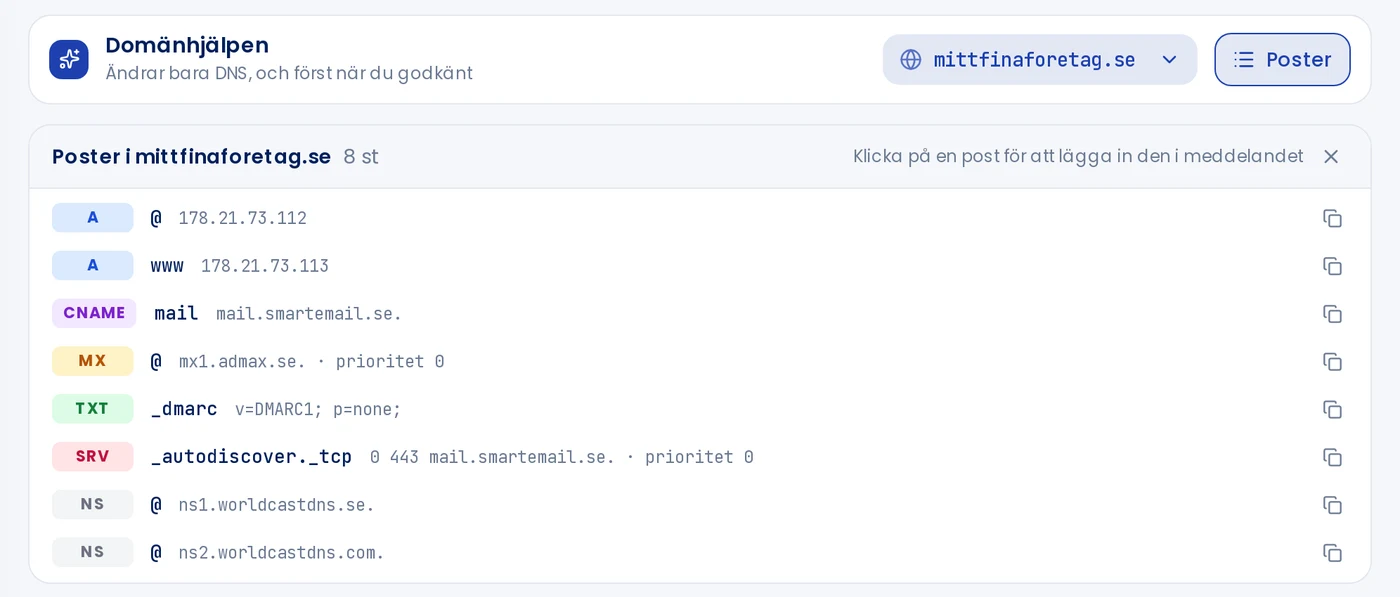
Click Records to see everything currently set for the domain. Clicking a record adds it to the message field, so you can write something like remove this one without having to copy out the value.
If you have multiple domains, switch between them using the list alongside. Each domain has its own conversation, which is kept for as long as you have the page open. A proposal always belongs to the domain it was created for.
Undo a change
Once a change has been made, a summary is shown along with an Undo button. You can also type undo in the chat. The most recent change can be undone within 24 hours, and also later from the DNS view. The domain will be restored to exactly how it was before.

Changes take effect immediately on our side, but it can take up to 24 hours before they propagate across the internet. Read more about Domain Assistant in the blog post Domain Assistant: AI help that updates your DNS records.
Free tool
- DNS lookupView all DNS records for a domain: A, AAAA, CNAME, MX, NS, TXT, SOA and CAA.
- DNS propagationCheck whether a changed DNS record has taken effect at Google, Cloudflare, Quad9 and AdGuard.
- Is the domain available?Check whether a domain name is available and see at the same time if it is free on .se, .nu, .com and .eu.
- Whois lookupSee who the registrar is for a domain, when it was registered, when it expires, and which name servers it uses.